Blog / codex
Codex Sandbox: How to Run Code Agents Safely in 2026
How the Codex CLI sandbox works: sandbox modes, approval policies, config.toml settings, network access and OS-specific setup on macOS, Linux and Windows.
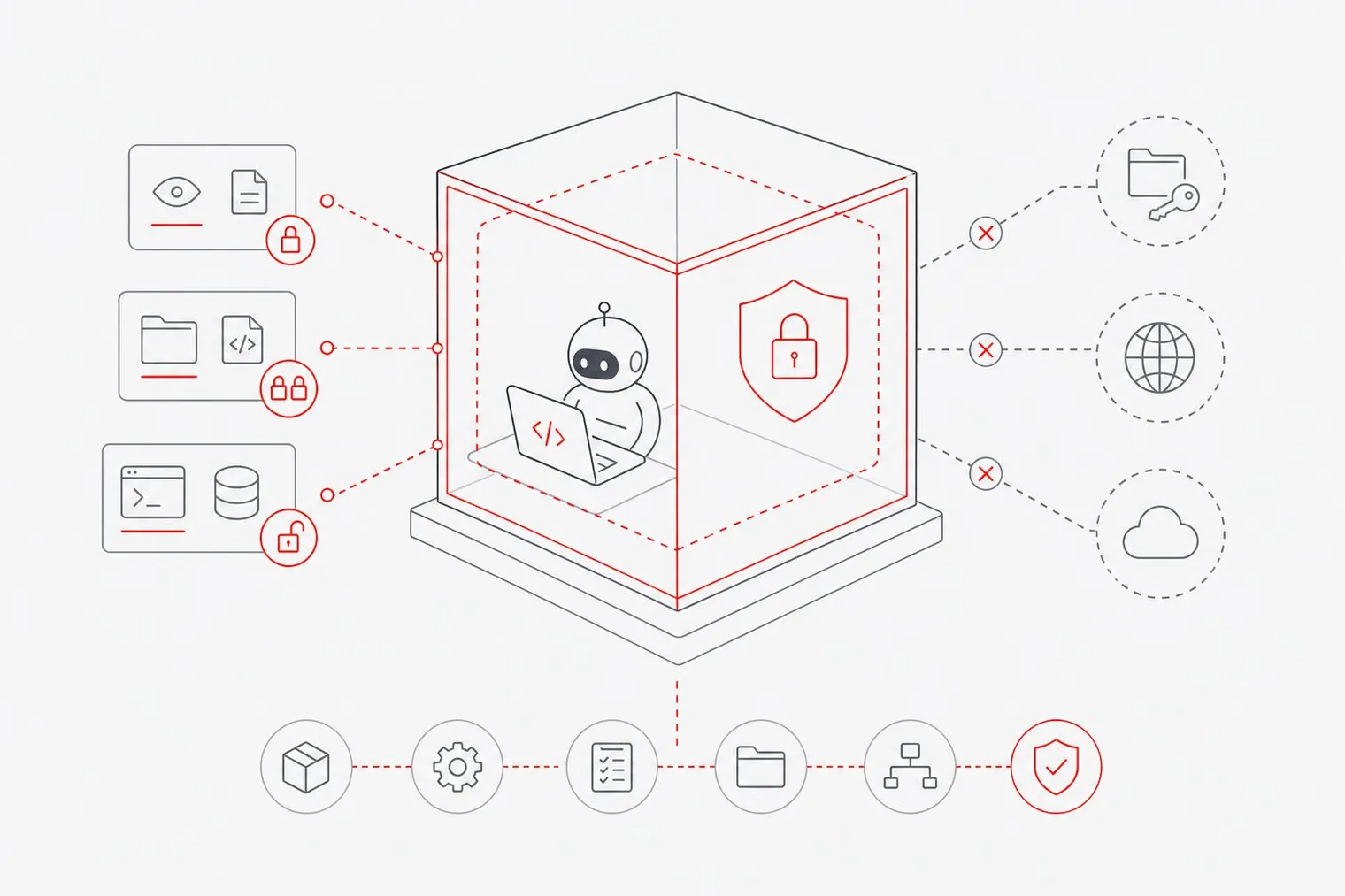
The Codex CLI sandbox limits what OpenAI's coding agent can touch on your machine. It combines a sandbox mode (read-only, workspace-write or danger-full-access) with an approval policy that decides when Codex stops to ask you, and enforces both with OS-level isolation: Seatbelt on macOS, bubblewrap plus seccomp on Linux and WSL2, and a native sandbox on Windows. This guide walks through what each setting does and how to configure it, based on OpenAI's Codex security docs.
What Is the Codex Sandbox and Why Does It Matter in 2026?
The sandbox is the layer that keeps a coding agent from writing outside your project, reaching the network, or touching files it has no business with. Without it, an agent running autonomously can overwrite configs, leak tokens, or install packages outside your project directory.
The three sandbox modes:
read-only: Codex can read and inspect your code but not write.workspace-write: Codex can edit files inside your workspace. Inside writable areas, Codex keeps sensitive paths such as.gitand.codexread-only automatically. Network access is off by default.danger-full-access: no sandbox. Only use it inside an environment that is already isolated, such as a throwaway VM or container.
The approval policy sits on top: on-request lets Codex work inside the sandbox and ask before stepping outside it, while never never asks (which, combined with a permissive sandbox, means fully unattended).
How to Set Up the Codex Sandbox: Step-by-Step
Install the Codex CLI. Run
npm install -g @openai/codexorbrew install --cask codex, then confirm withcodex --version. See the Codex CLI docs for other install options.Sign in. Run
codexin your project directory and choose Sign in with ChatGPT, or runcodex login. You can also use an OpenAI API key.Make sure the OS sandbox is available. On macOS, Seatbelt is built in. On Linux and WSL2, install bubblewrap (
sudo apt install bubblewraporsudo dnf install bubblewrap); without it, Codex falls back to a bundled helper that needs unprivileged user namespaces. On Windows, running Codex from PowerShell uses its native Windows sandbox.Choose a sandbox mode and approval policy. For everyday work, set these in
~/.codex/config.toml:sandbox_mode = "workspace-write" approval_policy = "on-request"Or pass them per run with
codex --sandbox workspace-write --ask-for-approval on-request. Inside a session,/permissionslets you switch.Add extra writable directories only if you need them. The workspace is writable by default in
workspace-writemode. If the agent genuinely needs to write elsewhere, add those paths under[sandbox_workspace_write]withwritable_roots = ["/path/to/dir"]. Keep the list short.Decide on network access. Network is off by default in
workspace-write, which is the safest setting. If your tasks need to install packages, turn it on withnetwork_access = trueunder[sandbox_workspace_write], and check the security docs for the current options to restrict which domains are reachable.
Codex Sandbox on Linux and Windows: OS-Specific Details
On Linux, Codex uses bubblewrap together with seccomp to restrict what the agent's commands can see and do. Installing your distribution's bubblewrap package is the most reliable setup. On Ubuntu 24.04 and later, AppArmor restricts unprivileged user namespaces by default, which can stop the sandbox from starting; OpenAI's sandboxing docs describe the AppArmor profile that fixes it.
On Windows, run Codex from PowerShell to use the native Windows sandbox, which OpenAI recommends by default. If you work inside WSL2, Codex uses the same bubblewrap-based sandbox as on Linux.
If you run Codex inside a Docker container, the sandbox may fail because the container blocks the namespace or seccomp calls it needs. In that case the container is your isolation boundary: keep it locked down and run Codex with --sandbox danger-full-access inside it.
What Does a Codex Sandbox Error Mean, and How Do You Fix It?
A sandbox warning or error at startup means Codex could not set up OS-level isolation. The usual causes:
- bubblewrap is missing (Linux/WSL2): install the
bubblewrappackage. - user namespaces are blocked: common on Ubuntu 24.04+ (AppArmor) and inside containers. Follow the AppArmor steps in the docs, or rely on the container as the boundary as described above.
- a config typo:
config.tomlis TOML, not JSON, so check key names and quoting.
To turn the sandbox off entirely, use --sandbox danger-full-access, or --dangerously-bypass-approvals-and-sandbox to also skip approvals. Only do this in an environment that is already isolated and has no live credentials.
Codex Sandbox Online vs. Local: Which Isolation Model Is Right for You?
Codex cloud tasks run in OpenAI-managed containers instead of on your machine, with internet access configured per environment. That shifts the isolation work to OpenAI's infrastructure. The local CLI gives you more control and more responsibility: you own the sandbox settings, the network setting and the host machine. Untrusted repository code, such as a malicious install script or a poisoned dependency, is the classic risk for any agent that runs commands, which is why keeping network off and writes scoped to the workspace matters.
The Codex sandbox limits files and network, but it doesn't manage credentials: if a real API key sits in an environment variable the agent's commands can read, the sandbox alone won't hide it. That's the gap Hotcell, the sandbox layer in the Directionally Local stack, is built for. It runs agents on your own hardware in Docker containers, Firecracker microVMs or Apple Virtualization microVMs. Each sandbox only gets a short-lived token; a gateway on the host swaps it for the real key on outbound calls, and the token is metered, spend-capped and revocable. Directionally Local pairs Hotcell with Autopilot, a terminal coding agent that works with any OpenRouter model or your own OpenAI-compatible endpoint.
For teams running several agents that need per-sandbox spend caps, teardown and credential isolation, a self-hosted layer like this is worth the setup. For solo developers running occasional tasks, the Codex CLI's built-in sandbox in workspace-write mode is a sensible default.
FAQs
How do I use Codex without the sandbox enabled?
Run with --sandbox danger-full-access (or set sandbox_mode = "danger-full-access"), or use --dangerously-bypass-approvals-and-sandbox to skip approvals too. This removes OS-level isolation, so only do it inside an environment that is already isolated, such as a disposable VM or container with no live credentials.
Is Codex usable for free?
Check OpenAI's Codex pages for current plans and limits. If cost or data residency is the concern, Autopilot and Hotcell from Directionally Local are free and open source and run on your own hardware.
Can I run the Codex sandbox on a remote Linux server?
Yes. Install bubblewrap on the server, clone your project and run Codex over SSH. The sandbox works the same as on a local Linux machine, as long as unprivileged user namespaces aren't blocked.
Does the Codex sandbox protect my API keys from agent subprocesses?
Not directly. It limits filesystem writes and network access, but a key that's present in the environment can still be read by commands the agent runs. Keeping real keys out of the agent's environment altogether, for example with Hotcell's per-sandbox tokens, closes that gap.
What is the difference between workspace-write and danger-full-access?
workspace-write lets the agent write only inside your workspace (plus any writable_roots you add), keeps paths such as .git and .codex read-only, and leaves network off by default. danger-full-access removes the sandbox, so the agent can write anywhere your user can. Use workspace-write for normal development and keep danger-full-access for environments that are already isolated.
Conclusion
The Codex sandbox protects you only if you configure it deliberately. workspace-write with on-request approvals covers most development work, network access is off unless you turn it on, and danger-full-access belongs only in disposable environments. If you also need to keep real credentials away from the agent, or run many agents with spend caps, add a credential-isolating sandbox layer before you widen permissions.